We use cookies to improve your online experience. By continuing browsing this website, we assume you agree our use of cookies.
Home > News & IEM Guides > IEM Guides > IEM Microphone Not Working on PC - Check the Cable and Input Settings
Sep.2026 27

IEM Microphone Not Working on PC - Check the Cable and Input Settings

Introduction
Check whether your IEM cable has a microphone, choose the right headset connection and test Windows and app input settings.
Details

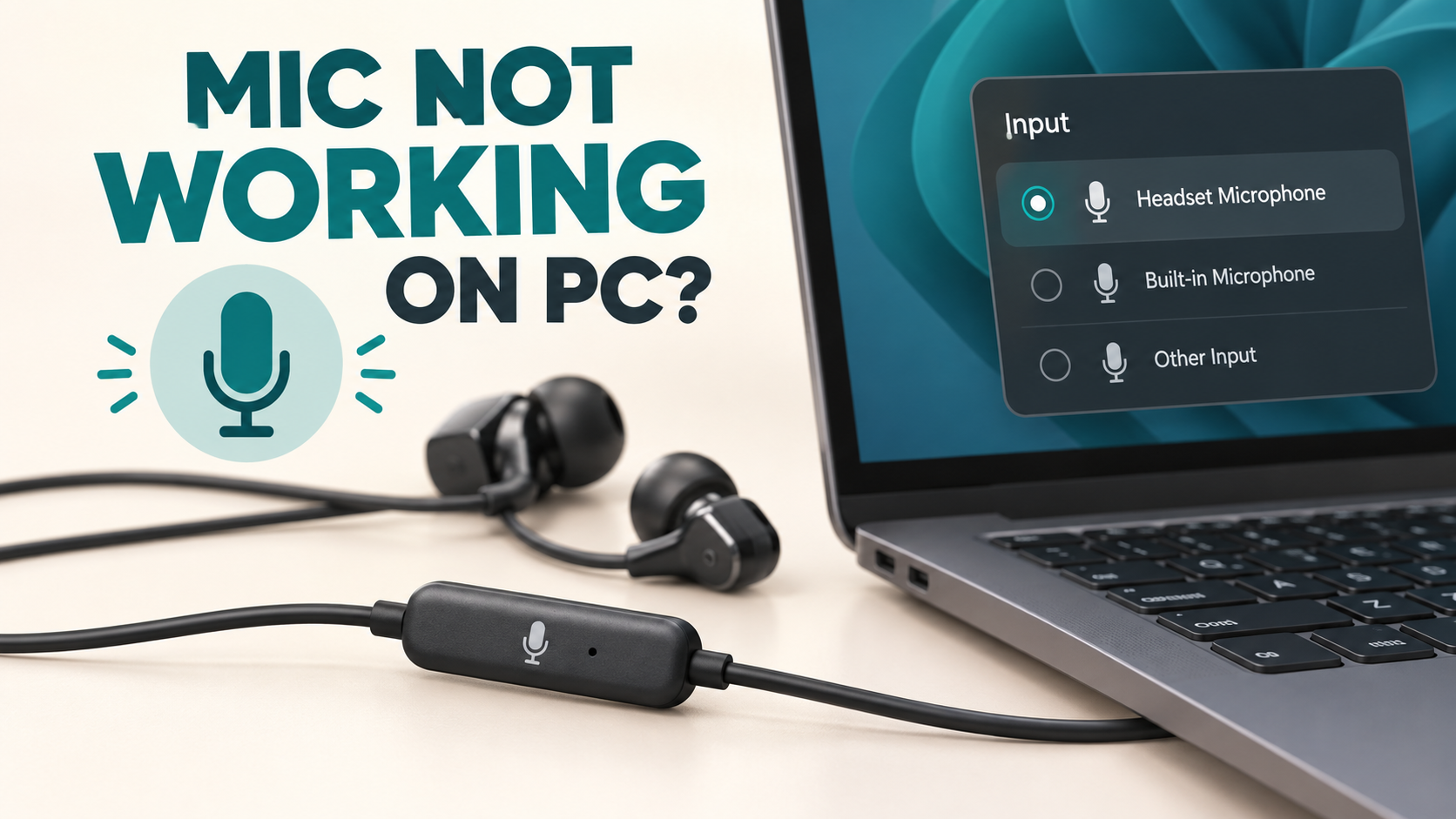
Illustration of an inline IEM microphone and computer input selection

Hearing game audio through your IEMs does not prove the microphone path is connected. A pair of passive earphones needs a microphone in the cable, a compatible microphone accessory or a separate microphone for voice chat.

Check what your cable actually includes

Look at the product description for an inline microphone. Do not assume a cable has one because it uses USB-C or includes a button. For analogue headsets, a compatible four-contact TRRS plug can carry stereo audio and microphone signals; a standard stereo TRS headphone plug does not add a microphone input.

Compatibility involves the wiring standard as well as the number of contacts. Confirm your cable, adapter and computer support the same headset connection before ordering a replacement.

One socket or two?

A combined headset socket carries headphone output and microphone input through one compatible connector. A desktop with separate headphone and microphone sockets may need a headset breakout adapter: one compatible TRRS headset socket to separate headphone and microphone plugs. A splitter designed to share audio between two listeners is a different product.

If you use a USB audio adapter, it must support microphone input. Some headphone DACs provide playback only. Check that feature explicitly instead of relying on the shape of the 3.5mm socket.

Test the input before opening a game

  1. Connect the cable fully and check any physical microphone mute switch.
  2. In Windows sound settings, select the intended input device. A webcam or laptop microphone may otherwise remain selected.
  3. Use the system microphone test or a local recording to check that your voice is being captured.
  4. Allow microphone access for the app you intend to use. Microsoft documents the relevant Windows privacy controls.
  5. Inside the game or chat app, select the same input and check mute, push-to-talk and input level.

What does a successful recording tell you?

If the system test works but the game does not, focus on the game's selected input and voice settings. If no application records sound, return to the cable, adapter and system input checks. Avoid increasing every gain control at once; excessive input gain can make speech distorted.

Can I keep my current IEMs?

Usually the listening and speaking functions can be handled separately. A confirmed-compatible microphone cable may be an option for a detachable-cable model, while a separate USB microphone works independently of the earphones. Check your requirements before replacing the IEMs themselves.

Review cable connector compatibility or ask TINHIFI about your model.

References: Sennheiser's headset socket explanation; Microsoft microphone troubleshooting.

Illustration: generated editorial artwork, not a photograph of a specific TINHIFI model.

X