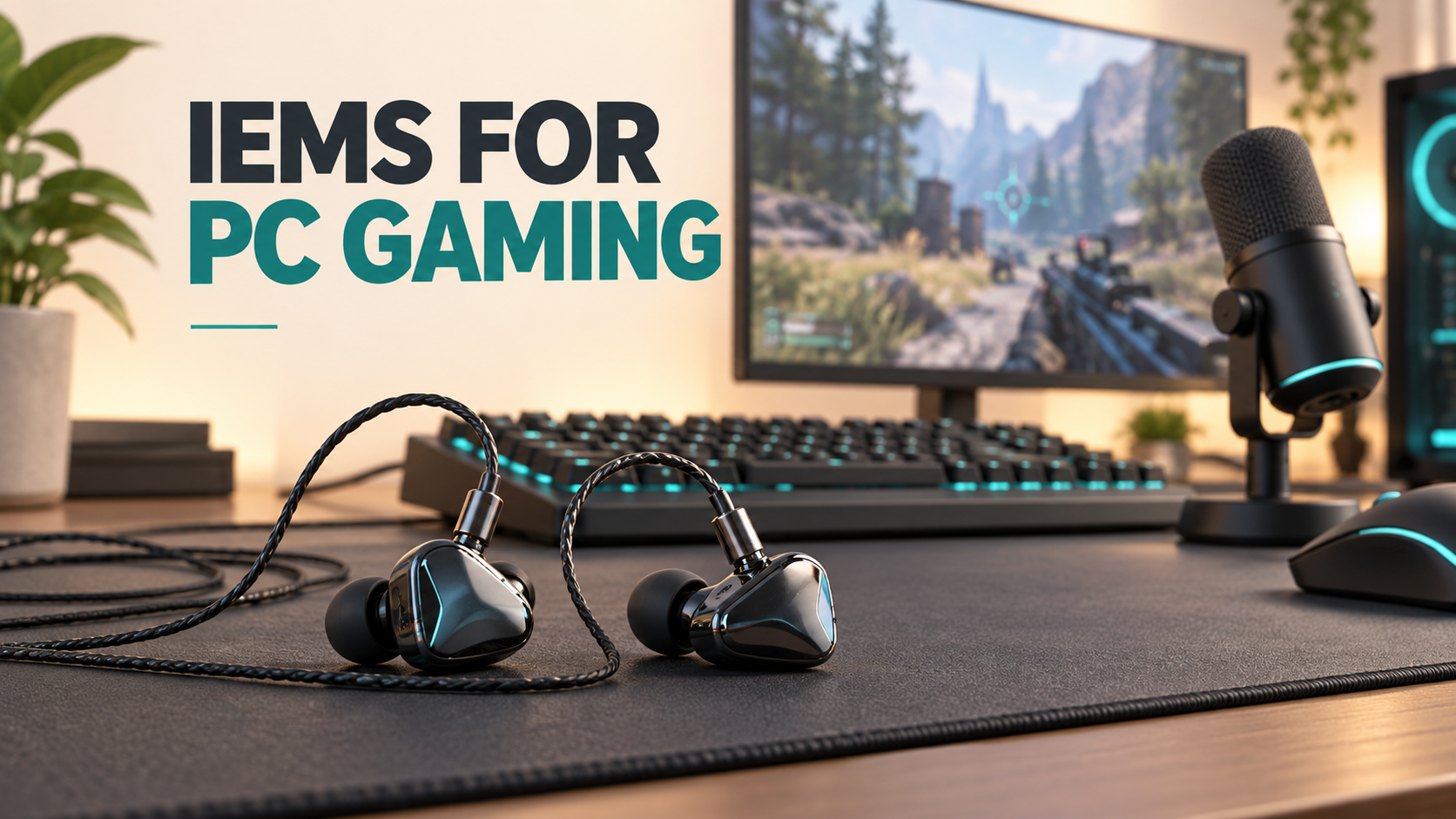
Wired IEMs can serve as a compact listening setup for PC gaming, but successful setup involves more than plugging them in. Check the stereo channels, the game's audio output and your voice-chat input separately. A higher price or more drivers does not guarantee better positional judgement.
Connect the IEMs to a compatible headphone output and lower the volume before playing. If you use USB, confirm that Windows and the game both select that audio device. Read the left and right markings on the earpieces and cable; reversed channels can make directional information confusing.
Use the system's left/right test at a low level. This checks channel routing, not gaming performance. If a channel is quieter, solve the fit or connection problem before evaluating imaging.
Begin with a simple baseline: the game's appropriate headphone setting and no extra EQ or surround processing added elsewhere. Then compare the game's available spatial or binaural options in a repeatable practice scene. Follow the game's own guidance when it specifies a particular configuration.
Avoid changing in-game spatial processing, a sound-card surround effect and several EQ presets simultaneously. If the result sounds wrong, you will not know which change caused it. Some software offers stereo and virtual-surround modes; they are processing choices, not additional physical drivers inside the IEM.
Check whether the cable includes a microphone. If not, use a confirmed-compatible microphone cable or a separate microphone. Choose the intended input in Windows and again in the chat app. Make a short recording before joining a call, and check mute or push-to-talk settings.
If your desktop has separate microphone and headphone sockets, confirm that your breakout adapter supports the headset wiring. A playback-only USB DAC will not capture your voice.
Choose ear tips that remain comfortable without forcing the earpieces deeper. Route the cable with enough slack so turning your head does not pull on the sockets. Take breaks and keep the listening level moderate; increasing loudness is not a dependable substitute for learning the game's sound cues.
No preset can promise the same result across every game, earphone, fit and listener. Keep a reference setting, compare at similar loudness and avoid large boosts that introduce distortion. Game sound design and the way a scene is mixed also affect which cues are available.
Start with the ear tip fitting guide, then explore TINHIFI IEMs by your connection and comfort needs.
Reference: EPOS Gaming Suite documentation illustrates stereo, surround and EQ as separate settings. Its software requires supported hardware and is not a TINHIFI driver.
Illustration: generated editorial artwork, not a photograph of a specific TINHIFI model.